Select a rule file for the queue under the Resolve
list, if multiple document types are processed by this queue or the
input file needs to be split into individual document files. Leave as
No rules (resolved) if this queue processes without
rules.
Then select the data file from Data
folder list.
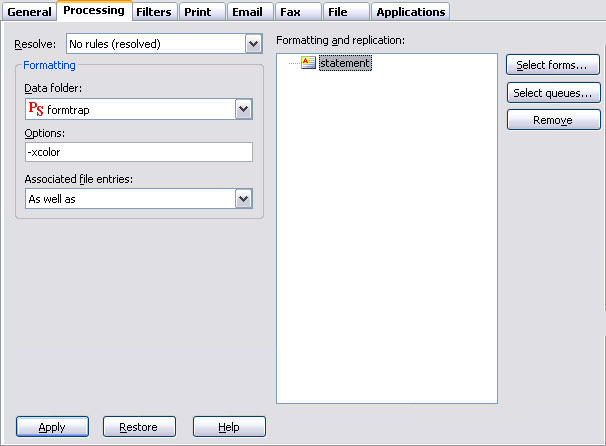
For No rules (resolved):
- To select a form, click on the Select
forms button (right) to open the dropdown list and
select one or more forms to be used to format the input file. Click OK
to finish.
- To select a queue, click on the Select
queues button (right) next to the panel to select one or
more queues to replicate (copy) the input file to. Be careful to not
create circular dependencies i.e. Queue "A" replicates to Queue "B"
that replicates to Queue "C" that passes it back to Queue "A". This
will result in a loop and eventually an error.
With Resolve
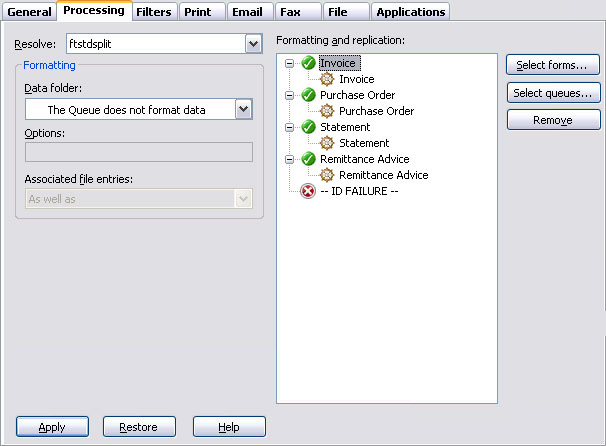
(rule file) selected:
- Once the rule file is selected it's
document entries are displayed in the Formatting and
replication panel as top-level elements. The special ID
FAILURE entry is used when files cannot be identified.
- For each entry in the list, you can use
the Select forms, Select
queues, and Remove button
to both process and replicate these entries.
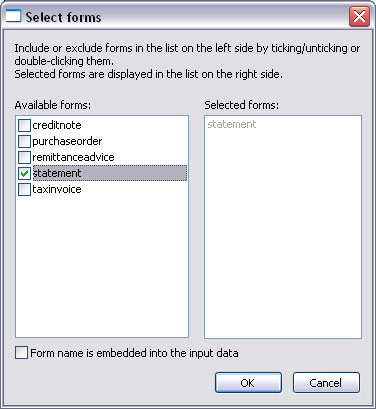
To add a form or queue, tick the items from
Available items list, and then you will see them as Selected
items appearing on the right panel. Click OK.
Ticking the option Form name
is embedded into the input data expects a form selection
within the input data (##F#formname#)
and overwrites any selected form name.
To remove a form or queue, select on the
item(s) from the Formatting and replication
panel, either press the Delete key, or
the Remove button.
Formatting options
Formatting Options allow users to specify
general formatting preferences for the forms being processed by the
queue. This is typically used to overwrite the color default - xcolor
or xnocolor.
| Option |
Description |
|
|
|
-xcolor/ -xcolour |
Use color commands. |
|
-xnocolor/ -xnocolour |
Do NOT use color commands (default). |
|
-xres |
Use high-resolution user-defined PCL fill patterns (default). |
|
-xnores |
Do NOT use high-resolution user-defined PCL fill patterns. |
|
-xpjl |
Use HP Printer Job Language before and after print job to setup printer
and reset it (default). |
|
-xnopjl |
Do NOT use HP Printer Job Language before and after print job to setup
printer and reset it. |
|
-xgl2 |
Use HP GL/2 for advanced PCL drawing (default). |
|
-xnogl2 |
Do NOT use HP GL/2 for advanced PCL drawing. |
|
-xbigfont |
Turns on support for sending True Type font headers to PCL printers
that are larger than 32767 bytes (default). |
|
-xnobigfont |
Type 2 font
headers (under 32Kb) are used when sending downloaded fonts. REQUIRED
for Lexmark T63x, T64x and T65x printers and all others that do not
support Type 3 font headers.
Note: Default is nobigfont
for version 6.3 and lower, bigfont for
version 6.4 and later.
|
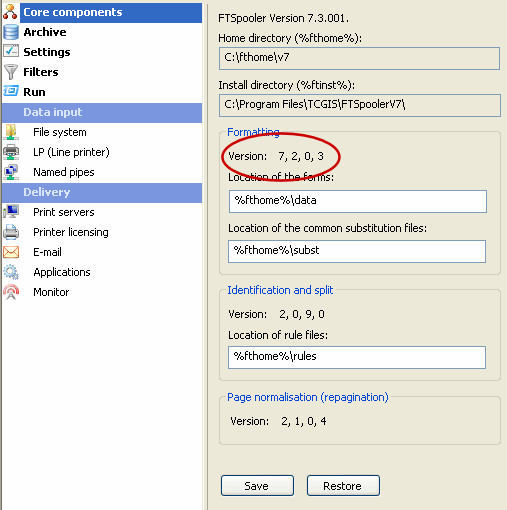
Asian Fonts – Special Setting for
Version 7.3.0.1 and lower version of FormTrap:
See Setup, Core
components, Formatting, Version:
For Asian and any other double-byte
fonts, please set all Queues, Processing
tab, Options: to –s. This
speeds up FormTrap by a factor of 10 or more. For additional details
see Asian Fonts in the www.formtrap.com
Knowledge Base. –s is another parameter in this
list and should be space separated from the –x
parameter.
Associated file entries
An Associated file is produced by the
Print Logic when the document is created. The associated file may
contain information on the delivery requirements of a document, or may
contain user-specified data. Entries in the file are represented using
a name=value syntax, where "name"
refers to the field name identifies the data contained in the "value".
e.g. emailto=user@domain_name.com the user@domain_name.com
is identified as the value of an emailto field.
More information on Associated files
The advantage of the facility is that each document in any given batch
can be handled according to its specific delivery requirements, without
having to initially separate the jobs in the originating application.
When either value is blank or the name=value
entry does not appear, the document will be handled according to the
Associated file options as set in FTSpooler.
There are four options for Associated file
entries:
- As well as - All the
delivery method(s) i.e. email/ fax/ print, specified in the Associated
file and those specified in the queue properties are used.
- Ignore - The
delivery method(s) specified in the queue properties are used;
Associated file delivery method(s) are ignored.
- Overwrite (recipients of the
same type) - If the delivery method specified in the
Associated file and the delivery method specified in the queue
properties are the same (e.g. both print) then the delivery option
specified in the Associated file is used.
- Overwrite (all recipients)
- Delivery method(s) specified in the Associated file delivery options
are used. If there is no delivery method (i.e. recipient) specified in
the Associated file, the delivery method specified in the queue
properties will be used.
Click the Apply
button to save the changes.
|



 All options
must be in the format -x[option]. Multiple options should be separated
by a comma. For example, -xnocolor,nopjl
All options
must be in the format -x[option]. Multiple options should be separated
by a comma. For example, -xnocolor,nopjl