| |
|
| Tools |

|
|
|
| Check Integrity |
|
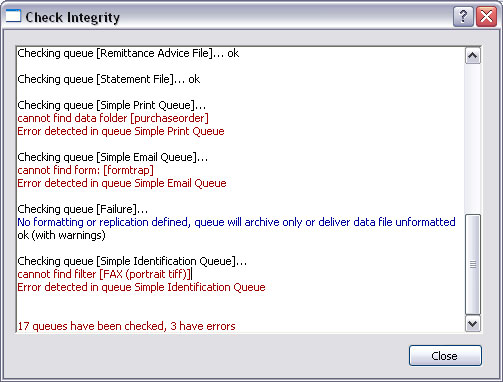
The Check Integrity tool verifies
completion of queue setups, such as replication, formatting, and data
validity and is useful in troubleshooting.
Warnings are shown in blue with errors in
red.
|
|
| Top |
|
| Batch Update |
|
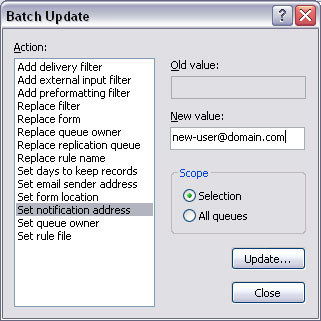
The Batch Update tool allows the same
action to be taken on selected or all queues. There are three types of
actions to be taken:
- Add - append
another value to a present value list where more than one value may
exist, for example, a new delivery filter.
- Replace -
find an old value and substitute a replacement value, for example,
replace a form with a new form.
- Set - update
a value that is unique to the queue, for example, days to keep the
records, or notification address.
To process a batch update:
- Select Batch Update
from the Tools button in Queues
section. The list of actions are displayed in the Batch Update window.
Select the Action to be taken.
- Enter the Old value if
applicable, and New value.
- Select the Scope
of the action.
- Click the Update
button to finish.
|
|
| Top |
| Changing ownership of queues |
|
To allow a normal user (not Admin)
to view archives for queues, the user must be the owner of those queues.
The owner of a queue will be able to see
archives for the queue and may also be able to edit the queue unless
restricted, see Setup - Users.
- Highlight the queues that the new owner
should be able to view.
- Select Batch Update
from the Tools button in Queues
section. The list of actions are displayed in the Batch Update window.
Select Set queue owner.
- Enter the user's name in New
value:.
- Set Scope to Selection.
- Click the Update
button to finish.
|
|
| Top |
|
|
|