Select a Form
Add Search Keywords
Forms with data
  How to fill in
  Changing/adding data
  Saving the data file
Preview
Printing
 
Forms-on-Demand


How to fill in a form


This screen allows you to fill in an empty form, or select a previous data file or to organize a "batch job" to print a file generated by one of your systems or another procedure.

To fill in an empty form, select Fill form manually.

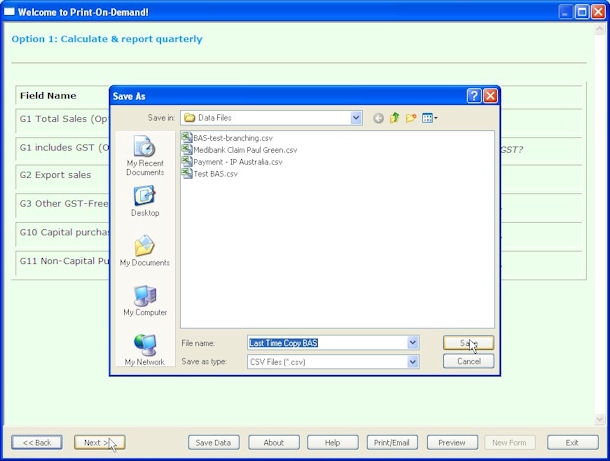
To select a previous data file, select Load existing form data then modify, then complete the file name or select Browse and locate the data file that way. This shows the Browse screen with Test-BAS.csv selected.

Select the Run batch job, then complete the file name or select Browse and locate the data file that way. This does NOT allow the data to be changed and instead directly prints or emails the document. No validation on the data file is performed and missing or erroneous fields are not validated. Note that the file may contain multiple lines of text, each completing one printed or emailed form.

Top
Changing/adding data

Data fields show in the order defined, with the fields either filled in or empty. The entire form may be presented or the form may have grouped sections that are mutually exclusive. In this case each group is presented, with Next pressed to get to a decision point.

Data fields may be keyed or entered from tables, as shown:

Next invokes edits on the data, as shown below:
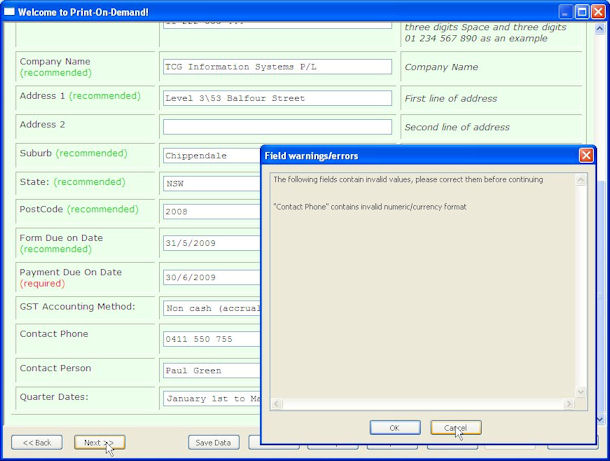
In this case, the user should have not left spaces between the elements of the "Contact Phone" number.

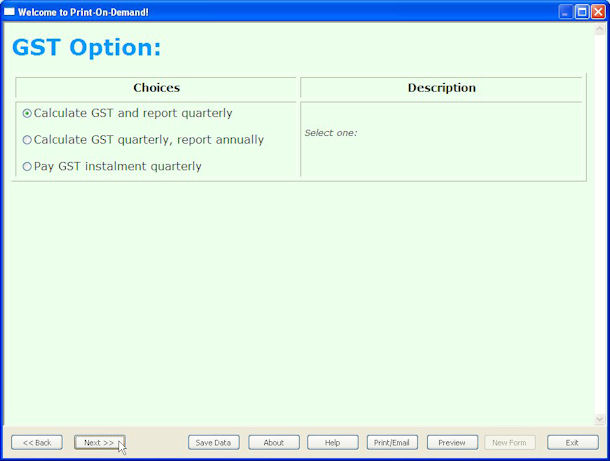
The screen below appears after pressing Next, and shows a decision point in this form, in this case a choice set between three mutually exclusive groups. You must select one of the choices and the appropriate group of data fields are presented when you press Next.
Here is the next group of fields, in this case "Option 1: Calculate and report quarterly"

Note: When keying numeric fields, you do not need to key the decimal unless you need it, the program works out the punctuation and adds decimals where they are required (ie key $4,231.00 as 4231)
 

Top
Saving the data file

Pressing Save Data allows a file containing the data to be saved. This is useful if you want to get at the data from another program or to use the form contents as a "last time" copy. Format is CSV with two records, field names record followed by a record containing data values.


Top