|
|
|
| Forms-on-Demand |
|
|
Confirm the Printer |
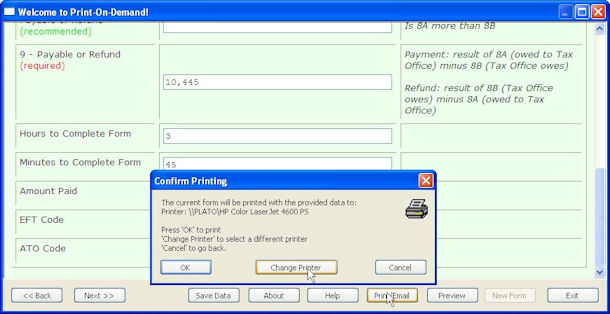
This screen appears if you exit data entry using
 button and allows you to change printer. Confirm to print or email to
that device, otherwise select Change Printer
or Cancel. PDF Converter is the
"printer" that produces a PDF file and saves and emails
the PDF file.
button and allows you to change printer. Confirm to print or email to
that device, otherwise select Change Printer
or Cancel. PDF Converter is the
"printer" that produces a PDF file and saves and emails
the PDF file.
|
|
|
Top
|
|
One Time Only - Install PDF Creator |
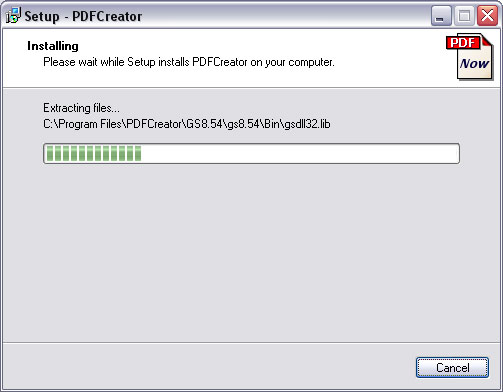
Where the middle button Install PDF Creator
is available, please press it to install PDF
Creator. This free package allows display of your form
as a PDF as well as emailing and saving.
|
|
|
Top
|
|
Select a Printer |
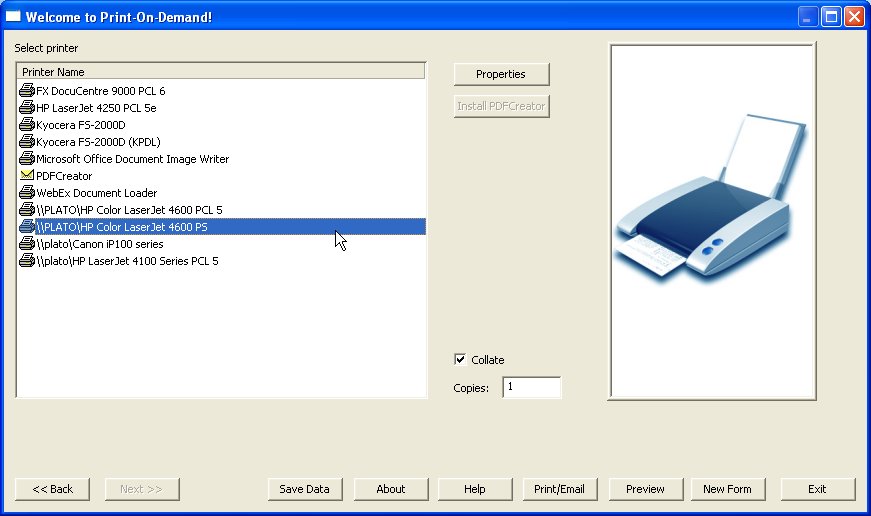
To select a printer to process the job:
- Choose one of the available printers.
- Click the Properties button to change the
selected printer properties.
-
Collate
will be checked, if you want the copies uncollated,
remove the check.
-
Preview
will preview the form.
-
Print/Email
to
process the job.
-
Click on the
New Form button to start a new
job, or the Exit button to quit the program.
|
|
|
Top
|
|
Print / Email using PDF Creator |
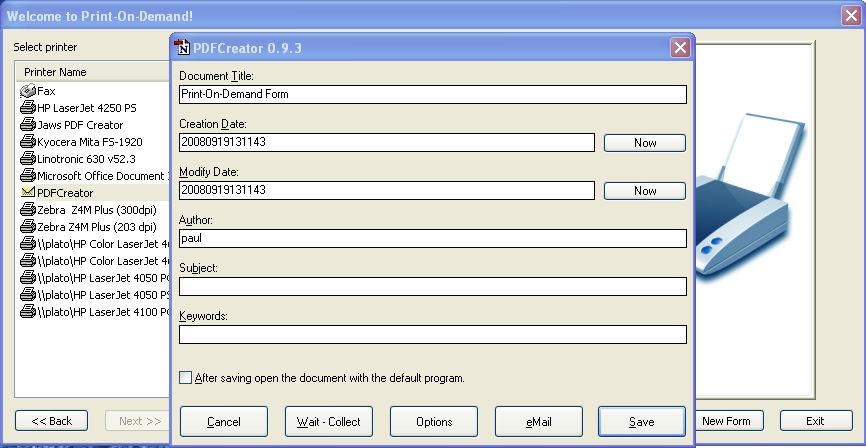
When you select PDF Creator from the printers list and
then select Print/Email the PDF Creator
screen appears.
- Cancel, Wait -
Collect and Options
should not be pressed.
- Ticking the After saving, open document with
the default program. button opens the PDF file
on screen. You will need to close this to see the
email screen.
- Save produces this screen, name the document and
save it as a PDF, in the folder you require.
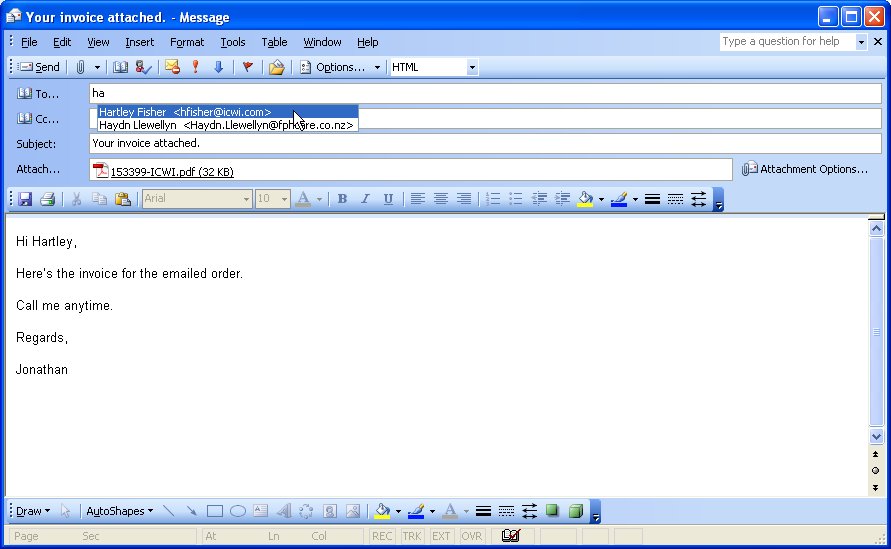
- eMail first runs through the above
Save screen,
then presents the screen below. Complete the details and send the
email to deliver your document.
|
|
|
Top
|
|
|
|