| |
|
| Assigning text to choices |
 |
|
When designing OMR forms, it's good practice to place text next to each
choice so the person filling out the form knows which choice to mark,
and FoD-OMR provides many options for automatically applying
text to choices.
To set up text for choices:
- Select the zone, then click the right mouse
button and select Properties from the shortcut menu. Alternatively,
with the zone selected, press CTRL+E or click the Properties tool
button.
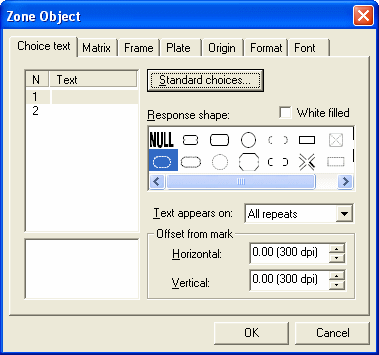
You can select from the following range of
standard text by clicking the Standard choices
button:
- Letters (upper and lower
case) for each choice, starting with 'A' or 'a'.
- Numbers for each choice in
ascending order, starting with '0' or '1'.
- Months for labelling each
choice with the 3-letter month ('Jan', "Feb', etc.).
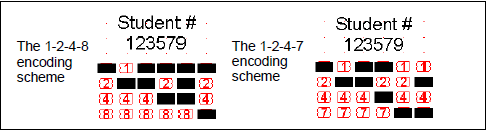
- Coded Decimal for expressing
numbers. Typically, these are serial numbers encoded on the form in one
of two available encoding schemes.
 - Binary
for true binary numbers.
- Choices for using one of
several Yes-or-No, True-or-False labelling styles.
- Spanish giving a list of the
above choices for Letters and Months.
|
| Positioning text and response shapes |
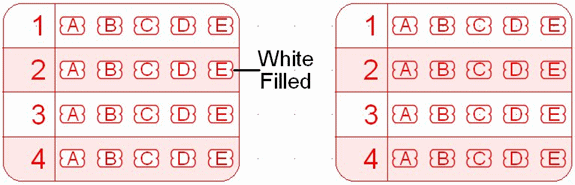
Different response shapes are available. If the response position
appears on a background other than white, such as a rectangle filled
with solid color, or frame stripes, click White filled
to clearly mark the response position.
You can position text on the first, last or
all elements by selecting from the Text appears on
list as well as offsetting the text from the center of the response
using Offset from mark. Negative values are offset
left and top respectively.
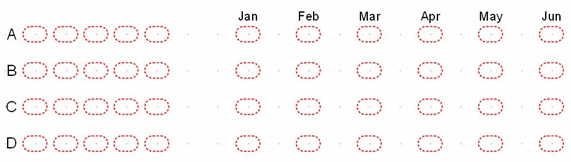
The matrix zones below have labels on the
first element, with the horizontal and vertical positions shifted (a
negative adjustment) so the labels appear outside the choice positions.
 |
|
| Top
|
|
|
|