|
Applications are delivery points for the FTSpooler. An application is a
one-off procedure that is started each time the FTSpooler delivers to
it, and stops on completion. Most applications are concerned with Fax
delivery. As an example, the Prodocom Application runs each time a fax
needs to be delivered to Prodocom, delivers to the Prodocom Run task
which is available from the time the FTSpooler starts until it stops.
The Prodocom Run task does the actual delivery to Prodocom’s computers
via a private and secure protocol, asynchronously.
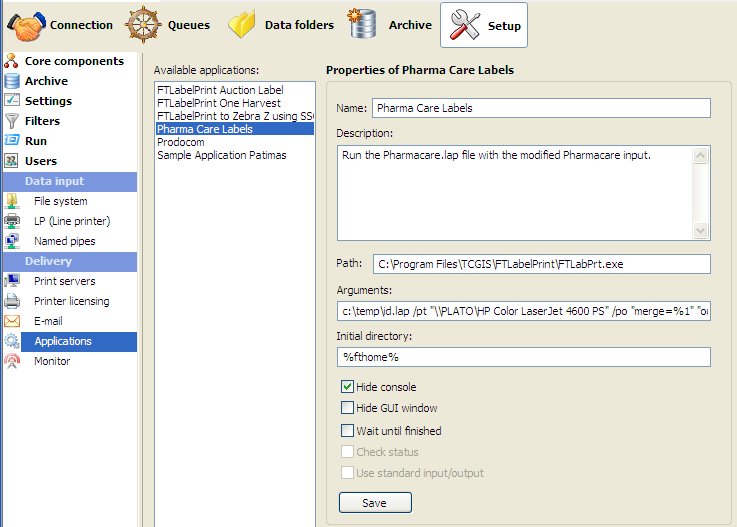
To add an application:
- Click the New
button.
- Name the
application and provide a brief Description.
- Enter the Path
to the application. Path can be absolute
or relative to the FTSpooler’s Installation Directory
(%ftinst%) or any other directory specified by the
‘PATH’ System environment variable. For maximum portability we
recommend placing executables in the %ftinst%
directory and specify just the executable name (without a path).
- Enter the command line Arguments.
If you are not using the standard input and output devices (Use
standard input/output checkbox) the input and output
files are specified in the command line using “%1” and (optional) “%2”
parameters. %1 is the print file, with extension .pcl or .pclxl (PCL6)
or .ps (PostScript). This name given in %1 can be used by your
application to also open the Associated File by substitution of .af as
the extension.
You may specify other parameters on the
command line using the [assoc file name] format. For
example, if you have an Associated File entry Netfax=123 456
7890 and the application has a parameter –fNetFaxNumber,
you can send it in this format as part of the Argument line: "-f[Netfax]”
(where the quotes are required as the data contains spaces).
This delivers "-f123 456 7890” to the application.
Arguments are normal where individual delivery is required with fax
applications being the most common. It is your responsibility to test
applications and especially variations in recipient data.
- Initial directory
is usually left empty. In this case it defaults to the executable’s
location.
- Check other options if applicable:
- Hide console
- Hide GUI window
- Wait until finished
- Check status
- Use standard input/output
- Click the Save
button.
To remove an application:
- Select on the application to be deleted.
- Click the Delete
button.
- Confirmation dialog box pops up.
- Click Yes
to finish.
More information on Queue
Properties - Applications
|
|