|
FTSpooler offers two e-mailing methods: Simple Mail Transfer Protocol
(SMTP) and Microsoft® Outlook/Exchange (MAPI).
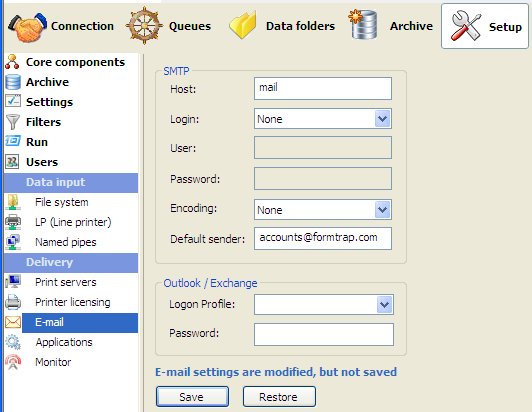
To configure the SMTP connection:
- Enter the full domain name of the SMTP
server in the Host textbox.
- Choose a login type from the Login
drop down menu.
- For login options other than None,
enter the User and Password to
be used by FTSpooler to log into the SMTP server when sending email.
- Choose an encoding type from the Encoding
drop down menu.
- Enter a full email address in the Default
sender textbox to define the sender details for outgoing
email.
- Click the Save
button.
Check and modify these in Exchange 7 (this
information is offered as a guide only, consult Microsoft
documentation):
- In Authentication Properties
tab enable Basic Authentication and disable Offer
Basic authentication only after starting TLS. TLS is the
default for Exchange 7 and is not supported by FormTrap.
- If you intend using an SMTPFrom
name that is different from the authenticated user, give permission to Send
As a different address. For details of how to grant this
permission, refer to the following Microsoft article:
http://technet.microsoft.com/en-us/library/aa998291(EXCHG.80).aspx
If you do not do this and set SMTPFrom
different from the authenticated user, you will get this error:
550 5.7.1 Client does not have
permissions to send as this sender
To use Outlook/Exchange, the profile
information must be available to FTSpooler. The profile name is
mandatory, password is optional and required only if the profile is
password-protected.
To configure Outlook/Exchange settings:
- Select the appropriate email profile from
the Logon Profile list. No profile listed
means there is no MAPI profile configured. Create and configure a
profile on that machine before continuing.
- Enter the password for that profile.
- Click the Save
button.
|



 Note: Microsoft Exchange Version 7 has
differences from earlier versions, you will need to check these items
in Exchange 7 and set them when installing or transferring to Exchange
7.
Note: Microsoft Exchange Version 7 has
differences from earlier versions, you will need to check these items
in Exchange 7 and set them when installing or transferring to Exchange
7.